
Introduction
Writing prompts for generative image and video models is a new skill that builds on communication abilities you already have. Just like giving creative direction to a colleague, prompting requires you to articulate your vision clearly.
The key difference is that generative models interpret your words more literally and lack the shared context that a colleague might have. If you prompt "a beautiful landscape," the model doesn't know whether you envision mountains at sunset or a tropical beach at noon—both interpretations are technically correct, but may not match your vision.
Prompt: A beautiful landscape | |
|---|---|

This comprehensive guide explains how to write effective prompts for both Text to Video and Image to Video modes by starting simple and adding detail strategically, using positive language, and embracing iteration as part of the creative process.
Iteration as a process
Before diving into techniques, understand that getting the perfect result may not happen on the first try. Creative work—whether you're writing, designing, or filming—involves drafting, collaborating, and refining. The same is normal and expected when working with generative media.
Think of prompting as a conversation with the model: You make a request, review the response, then clarify or expand your request based on what you see. Each generation teaches you something new about how the model interprets your words.
Iteration 1 | Iteration 2 | Iteration 3 |
|---|---|---|
A serene pond with koi fish | High angle looking down at a serene pond with koi fish | High angle looking down at a serene pond. A koi fish emerges and breaches the surface, sending gentle ripples through the surrounding lily pads. |
This iterative approach is often intentionally leveraged in workflows by seasoned creators, as it lets you refine your vision while simultaneously exploring possibilities you hadn't imagined.
Prompting iteration strategies
There are two main approaches when writing an initial prompt. Each has distinct advantages depending on your workflow:
- Starting simple lets you add one element at a time and see what each change does.
- Starting detailed can reduce the total steps in your iteration process, but can be more challenging to iterate.
Extremely complex, multi-paragraph prompts reduce the room for creative freedom a model has, constraining it to operate within tightly defined parameters. This over-specification can paradoxically lead to unexpected or unnatural results, as the model struggles to honor every detail simultaneously.
Core prompt elements
This section dives further into specific elements you may prompt for in either generation mode.
Text to Video
Text to Video models transform written descriptions of scenes into video. Effective prompts describe what appears in the frame and how those elements move through the scene using direct, clear language. You're building everything from written text prompts—composition, subjects, environment, lighting, style, and motion.
Prompt: A raccoon in a plain room in zero gravity trying to steal the garbage from a silver trash can. The garbage floats out in zero gravity. Handheld documentary film style. Natural camera shake. Raw indie film aesthetic. Natural lighting. Unpolished, authentic look. Low budget realism. Observational feel. |
|---|
Effective text to video prompts contain at least two essential elements:
- Visual descriptions — Describes what we see, where, and how it looks
- Motion descriptions — Describes how the scene moves and behaves
These elements may encompass multiple components:
Visual Components | Motion Components |
|---|---|
|
|
Image to Video
Image to Video models transform images into videos with a text prompt to guide motion. When using this mode, you upload an image to define composition, subject matter, lighting, and style that guide the video. Your prompt's role is to describe what should happen—the motion, camera work, and temporal progression you want to see using clear, direct language.
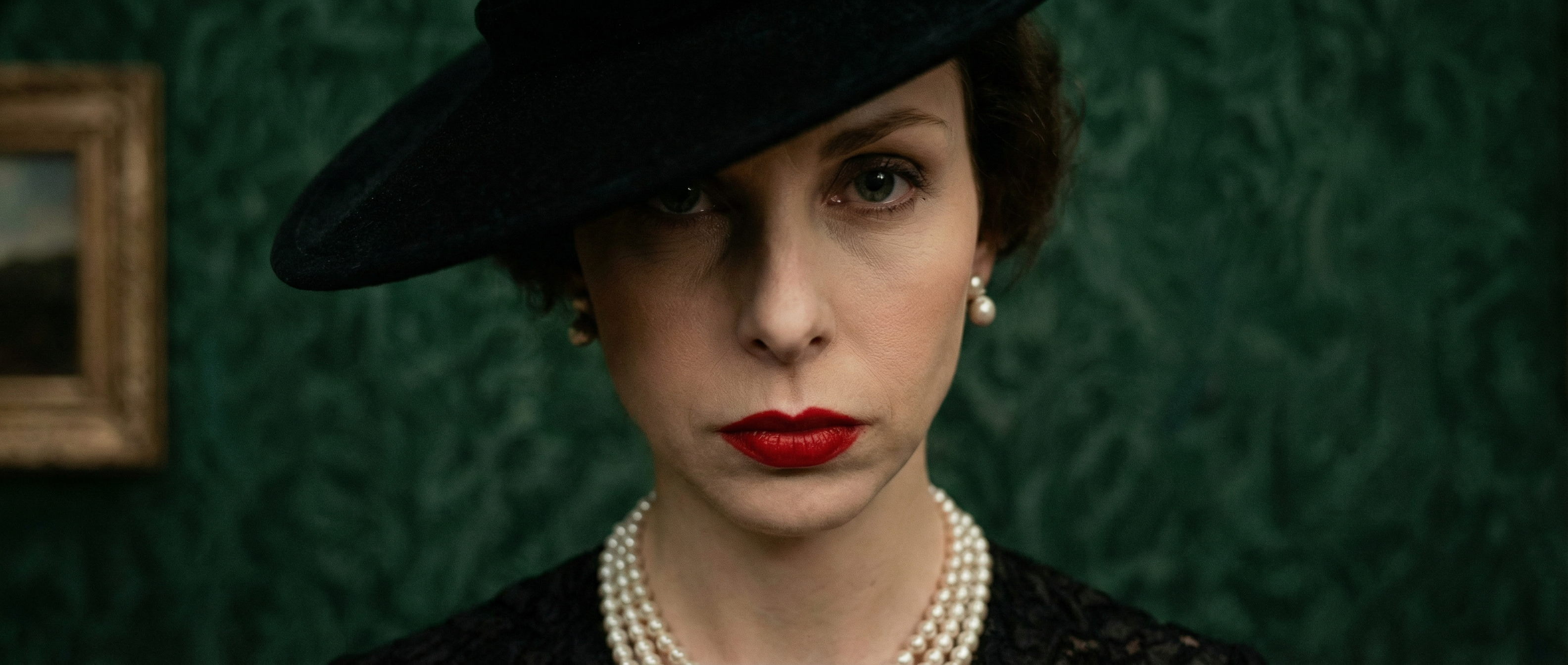
Prompt: The camera executes an aggressive, sweeping horizontal arc around the subject, followed by an extremely rapid, aggressive crash zoom that concludes with a sharp focus on the subject's eyes. |
|---|
Effective image to video text prompts focus almost exclusively on motion. Rather than describing elements present in the image, use your prompt to describe the motion of the scene.
Motion Components:
- Subject action
- Environmental motion
- Camera motion
- Motion style & timing
- Direction & speed
To control individual elements from your image, refer to characters and objects with general language to isolate them and define motion.
Do I need to include every component in my prompt?
No, you do not. Omitting certain components grants the model creative freedom to produce your video. We recommend starting with a simple prompt that focuses on the most critical motion components and then adding more detail to refine as needed.
This approach to iterating helps you understand how additions and changes may affect your results.
Are there situations where I should describe visual components?
Yes, there are cases where visual descriptions can be helpful:
- Introducing an element not present in the image
- Dramatic changes from the starting image
- Specifying transformation details
- Specifying interactions between two (or more) elements
Image Prompt
Your input image acts as the first frame and provides the model with the composition, subject matter, lighting, and style information for the video.
For best results, ensure that the input image is high quality and free of visual artifacts. Visual artifacts, such as blurry hands or faces, may be intensified once your image is transformed into a video.
Best Practices
Use positive phrasing
Describe what you want to see rather than what you don't want. Most models respond better to positive instructions.
Avoid ambiguous or conceptual language
Be specific and concrete. Instead of abstract concepts, use clear, observable descriptions.
Avoid conflicting instructions
Make sure your prompt elements don't contradict each other. Conflicting instructions can confuse the model and produce unexpected results.
Prompt Structure & Organization
You don't need to follow a strict formula to generate great results. Structure and order are far less important than clearly conveying an idea and reducing ambiguity.
However, establishing an organization method can assist with effectively conveying ideas and make future iteration and adjustments easier. We recommend trying this structure if you're new to generative media:
For Text to Video
[Camera] shot of [a subject/object] [action] in [environment]. [Supporting component descriptions]For Image to Video
The camera [motion description] as the subject [action]. [Additional descriptions]Below are examples of this structure in practice.
The camera slowly pushes in as the person scales the giant soda. | |
 |  |
Handheld camera: The man stands still as the crowd moves around him. He starts yelling as the camera slowly zooms out. Natural camera shake. | |
|---|---|
 |  |
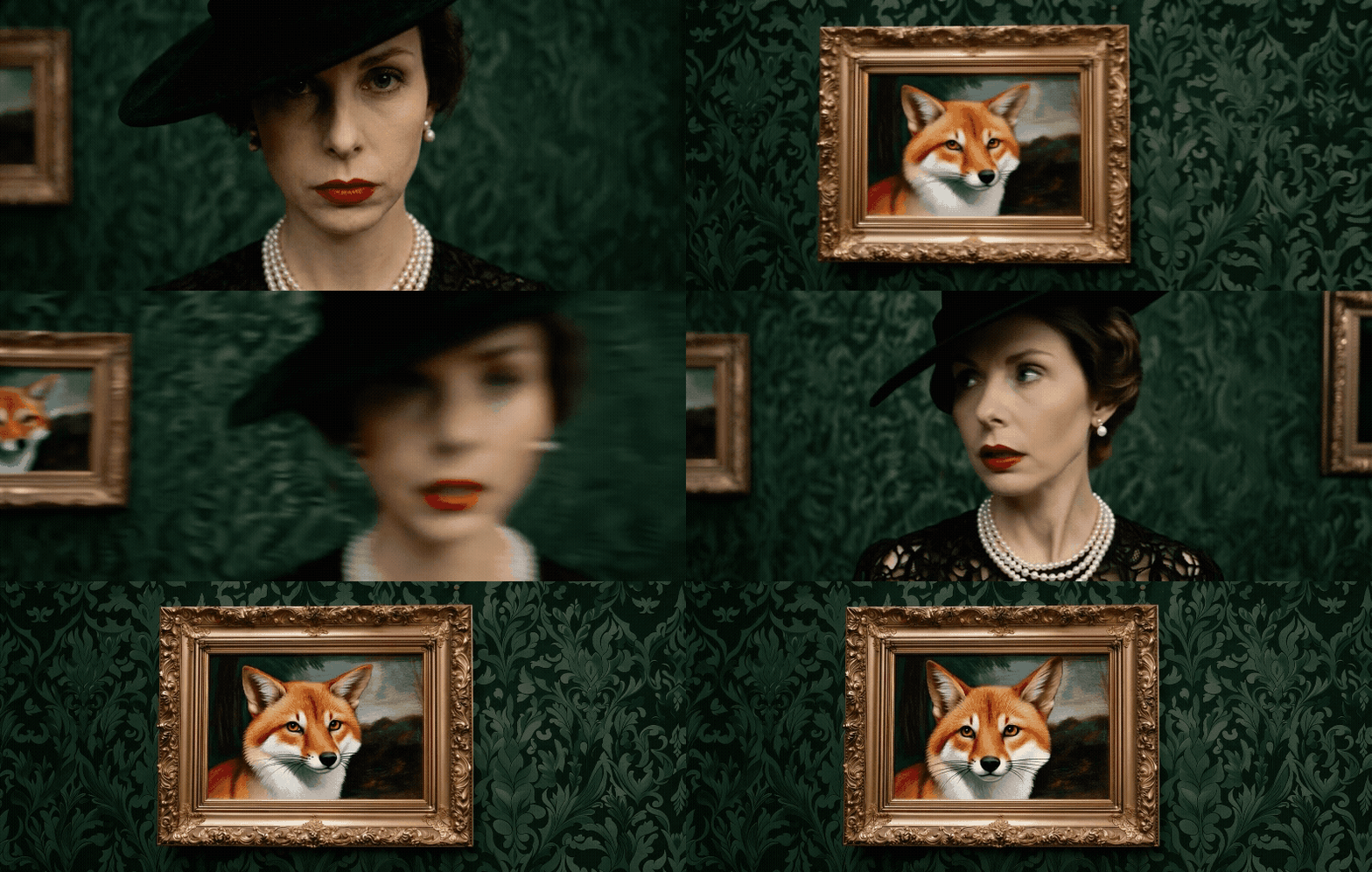
Whip pan to painting of a fox. Whip pan back to the woman with a curious expression. Whip pan back to the fox painting, the fox is moving. | |
|---|---|
 |  |
Advanced Techniques
Sequential Prompting
Sequential prompting provides an order of events for temporal control. This can be done through natural language, or by providing rough timestamps for an action to occur:
- Natural language:
X occurs, then Y occurs. Finally, Z occurs. - Timestamps:
[00:01] X occurs. [00:03] Y occurs. [00:04] Z occurs.
Creating Longer Sequences
Create longer sequences by extracting the last frame of a completed generation and using that as the image input for a new video.
To extract the last frame:
- Move the playback scrubber to the very end of the completed video
- Select Use from beneath the video
- Select Use current frame
Frequently Asked Questions
Input images may contain implied motion through elements like motion blur, mid-action elements and poses, or directional lines. Prompting for motion that contradicts these visual cues may require more iteration to achieve your desired result.
If you're not getting the motion you want after several iterations, check your input image for implied motion cues and consider using Text/Image to Image to remove or minimize cues before generating.
Input image | Prompt | Result | |
|---|---|---|---|
Prevalent motion cues: motion blur, dust clouds | 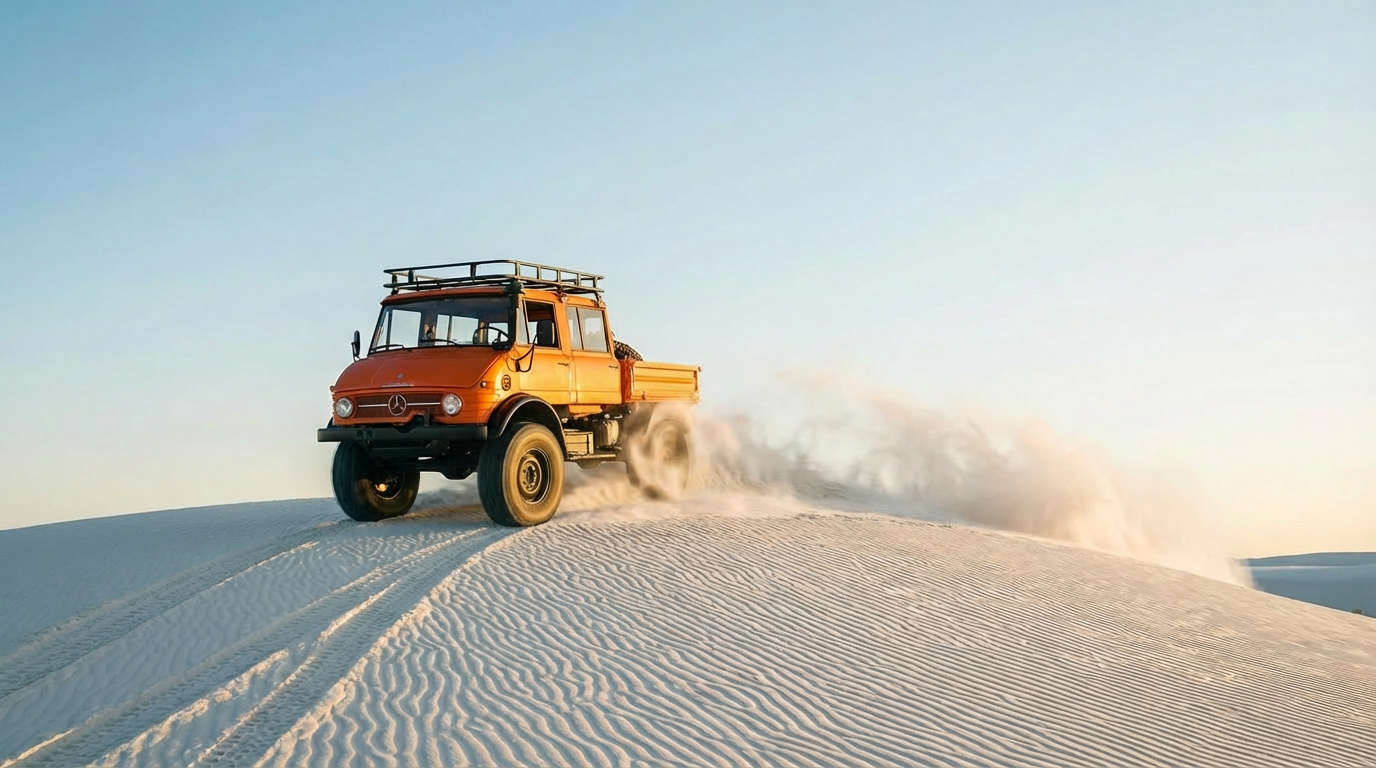 | The car is parked and completely motionless. The camera performs an aggressive, sweeping horizontal arc around the parked car. | 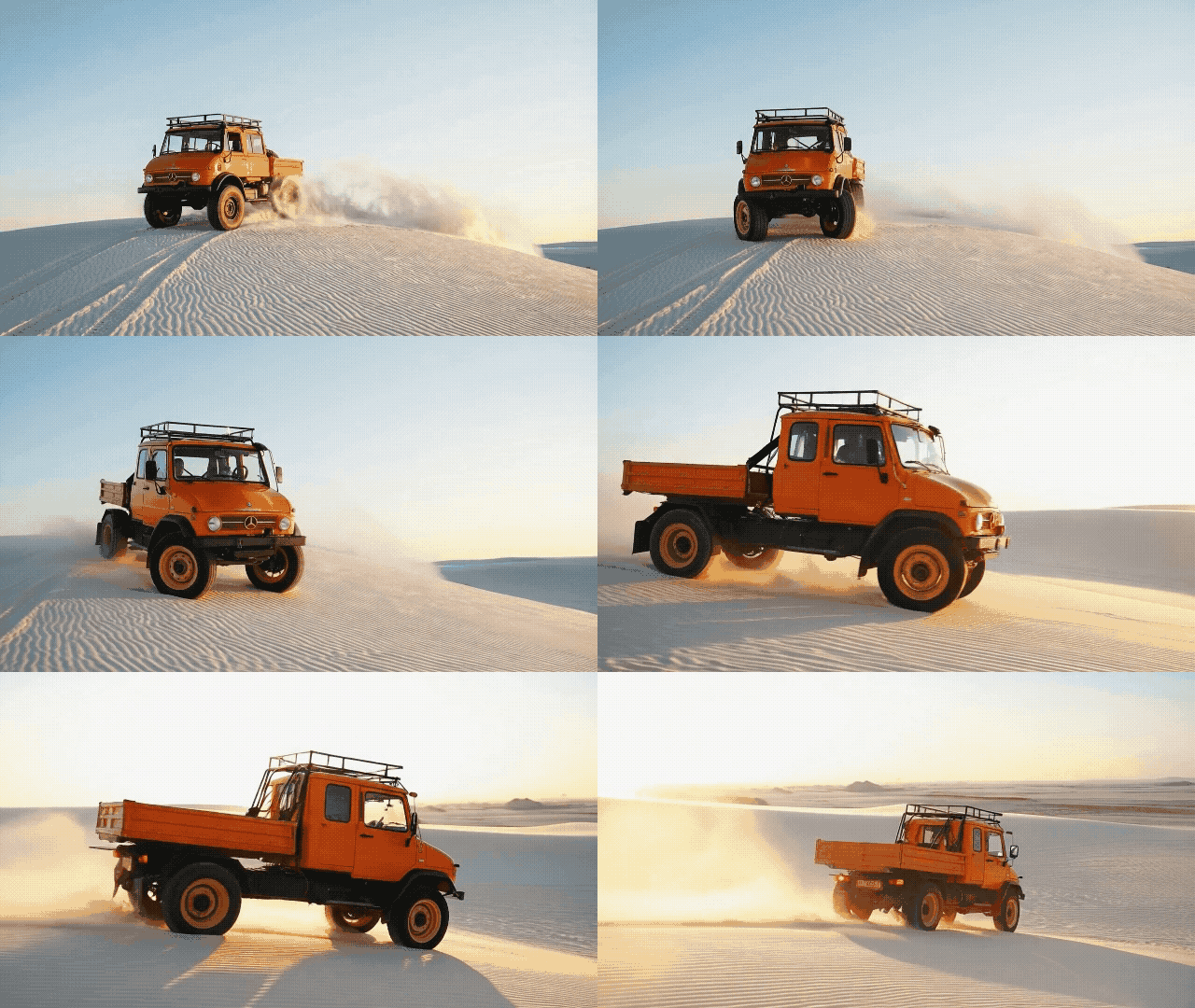 |
Minimized motion cues | 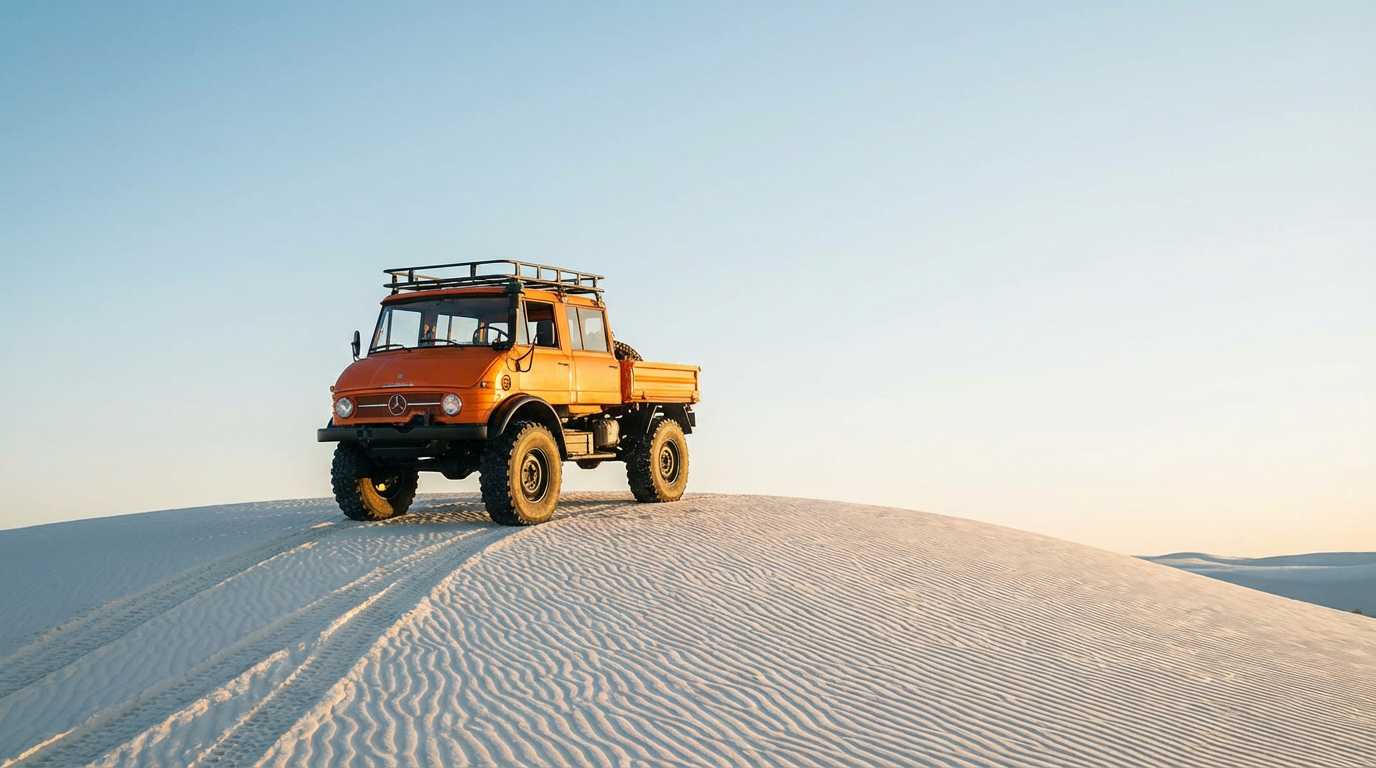 | 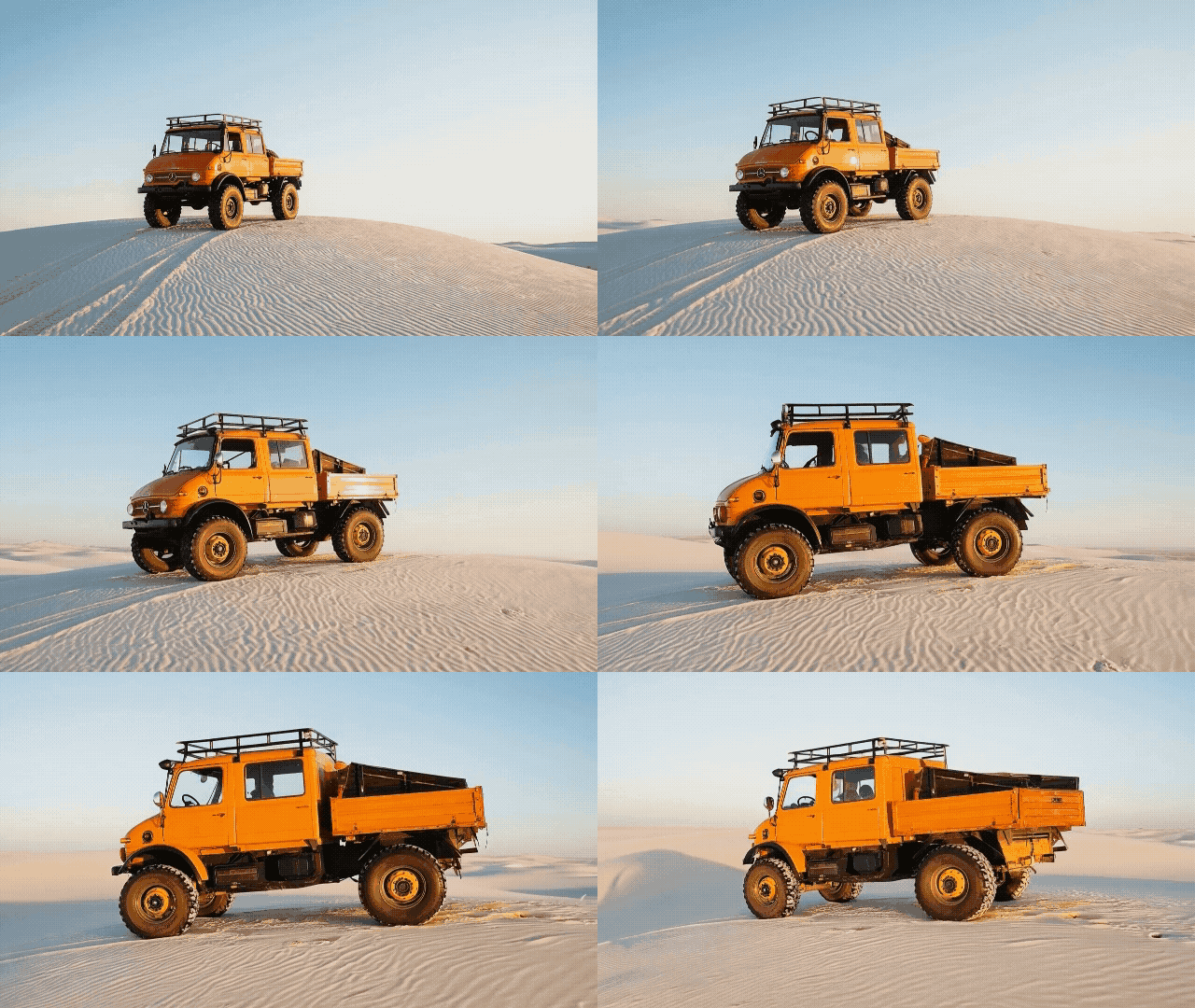 |
In the above example, prompting for a motionless, parked car was contradictory to the prominent dust clouds and motion blur that act as motion cues. Removing the dust clouds and motion blur from the image provided the desired results with the same prompt.
Receiving unwanted cuts in your video may indicate that your image and prompt combination would benefit from a higher duration.
First, try increasing the duration to iterate for a seamless shot. If cuts continue to occur, check your prompt for phrasing that might indicate a cut and consider adding a prompt component like Continuous, seamless shot to your input.
Video models are designed to produce motion, so ensuring that you describe what motion should occur within the frame is important to receiving shots with less motion.
However, this alone may not result in a perfectly still shot. You can try adding prompt elements like the examples below to further reinforce minimal motion:
The locked-off camera remains perfectly still.The camera must start and end on the exact same frame to create a perfect loop.Minimal subject motion only.
Using these methods to reduce camera motion and then stabilizing the shot in a video editor can help achieve the desired effect. Alternatively, consider using the Animate Frames app using the same image for both inputs for even more control.